


Doomscrolling: To spend an inordinate amount of time swiping up and down across multiple social media and news feeds—without really getting anything of use out of it. In fact, as addictive as it is, doomscrolling often leaves us feeling worse about ourselves and the world than when we started.
You might find yourself engaging in doomscrolling right before you go to bed, first thing after waking up, standing in line on the subway platform, or even—this is how bad it’s gotten—sitting at the dinner table with the family.
It doesn’t have to be this way though. There are tools and tactics you can use to beat doomscrolling and spend less time on your phone—which means more time enjoying the world and the people around you (and catching up on your sleep). Here are nine tips that can help, across all makes and models of phone.
1. Tone down the colors
A grayscale interface can make your phone less distracting. On Android, open Settings and pick Digital Wellbeing > Bedtime Mode to automatically switch to grayscale at a certain time, or enable it manually via Accessibility > Color and motion > Color correction.
On an iPhone, open Settings then choose Accessibility > Display & Text Size > Color Filters to find the grayscale option. There’s no automatic evening color drain like there is on Android, but you can automate the switch by using the Shortcuts app built into iOS.
2. Set time limits
Both Android and iOS now include tools for setting limits on the time you can spend inside particular apps each day. You can of course easily choose to disable these limits whenever you like, but it might still go some way to weaning you off your doomscrolling habits.
On Android, from Settings head to Digital Wellbeing > App timers to start choosing your apps and your time limits. Over on iOS, from Settings it’s Screen Time > App & Website Activity to do the same. You could even try slowly reducing your limits over time.
3. Reward focus
You might not have noticed, but there are now a wealth of apps to help wean you off unhealthy phone habits, and make sure you keep on top of your screen time. They all gamify the process in some way, encouraging and rewarding you for not doomscrolling.
Some of our favorites include Forest (for Android and iOS), Focus Friend (for Android and iOS), and Focus Traveller (for iOS): They use growing trees, helping a bean character, and hiking up a mountain, respectively, to help you stay on task and avoid distractions.
4. Take a pause
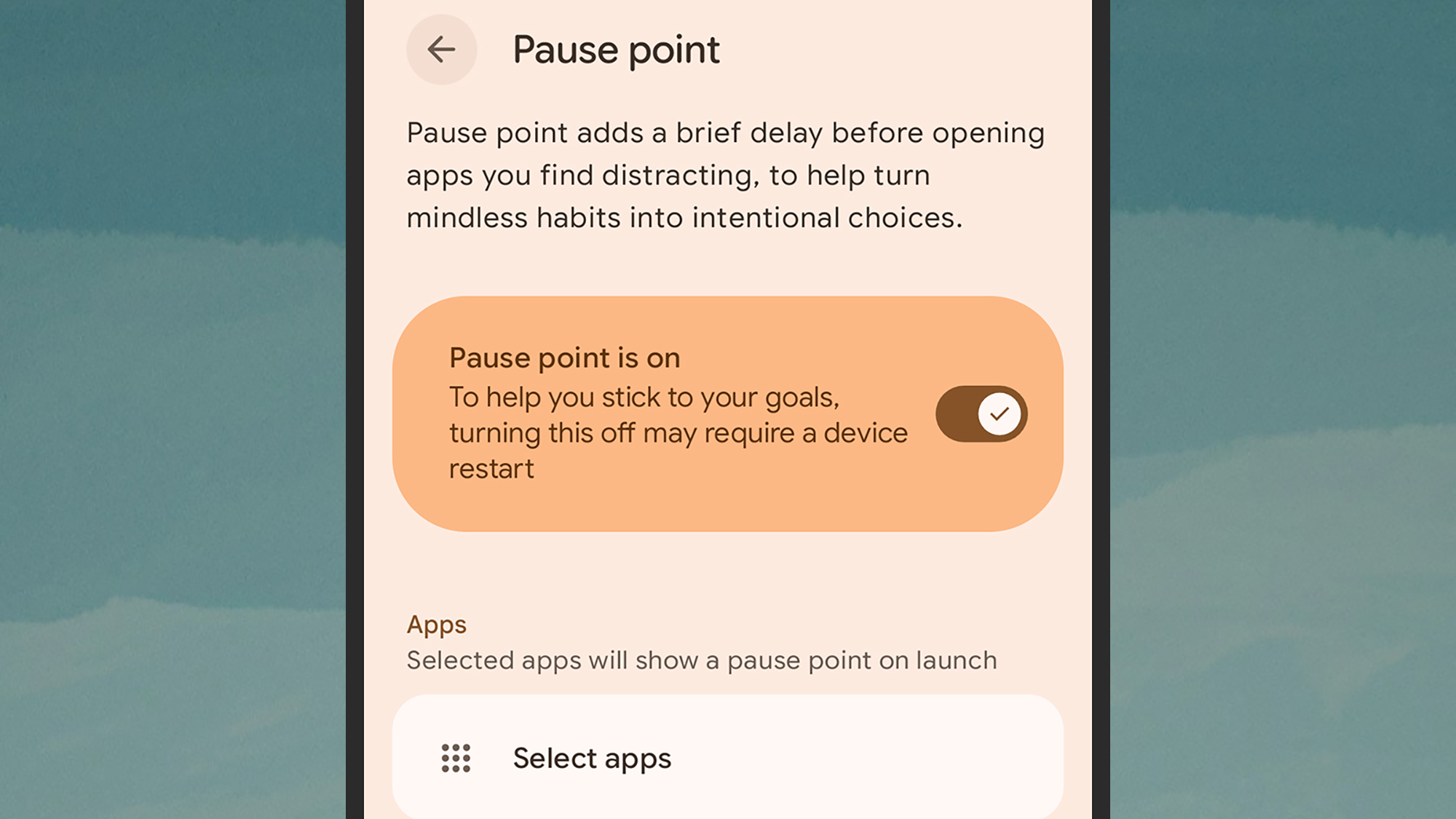
Pause Point is a new feature available now in Android 17 on Pixel devices, and potentially rolling out more widely in the future. You can find it by opening Settings and choosing Digital Wellbeing > Pause Point, then tapping Continue to get the feature configured.
For the apps that you choose, every time you open them up, you get one of your selected pause points. They include breathing exercises, and custom photo galleries, and the idea is to take a beat and consider if you really need to open up that distracting app after all.
5. Add a physical gadget
Sometimes the apps and options on your phone aren’t enough on their own. If that’s the case, try the Brick: It’s a $59 physical dongle that uses NFC tech, and when you tap your phone against it, it enables a custom quiet mode that blocks certain websites and apps.
The idea is that the Brick essentially bricks your phone for certain periods, so you spend less time on it. It’s not the only gadget that does this trick either—you could also check out the Autonomous Key, which can be yours for a mere $19 and works along similar lines.
6. Focus modes
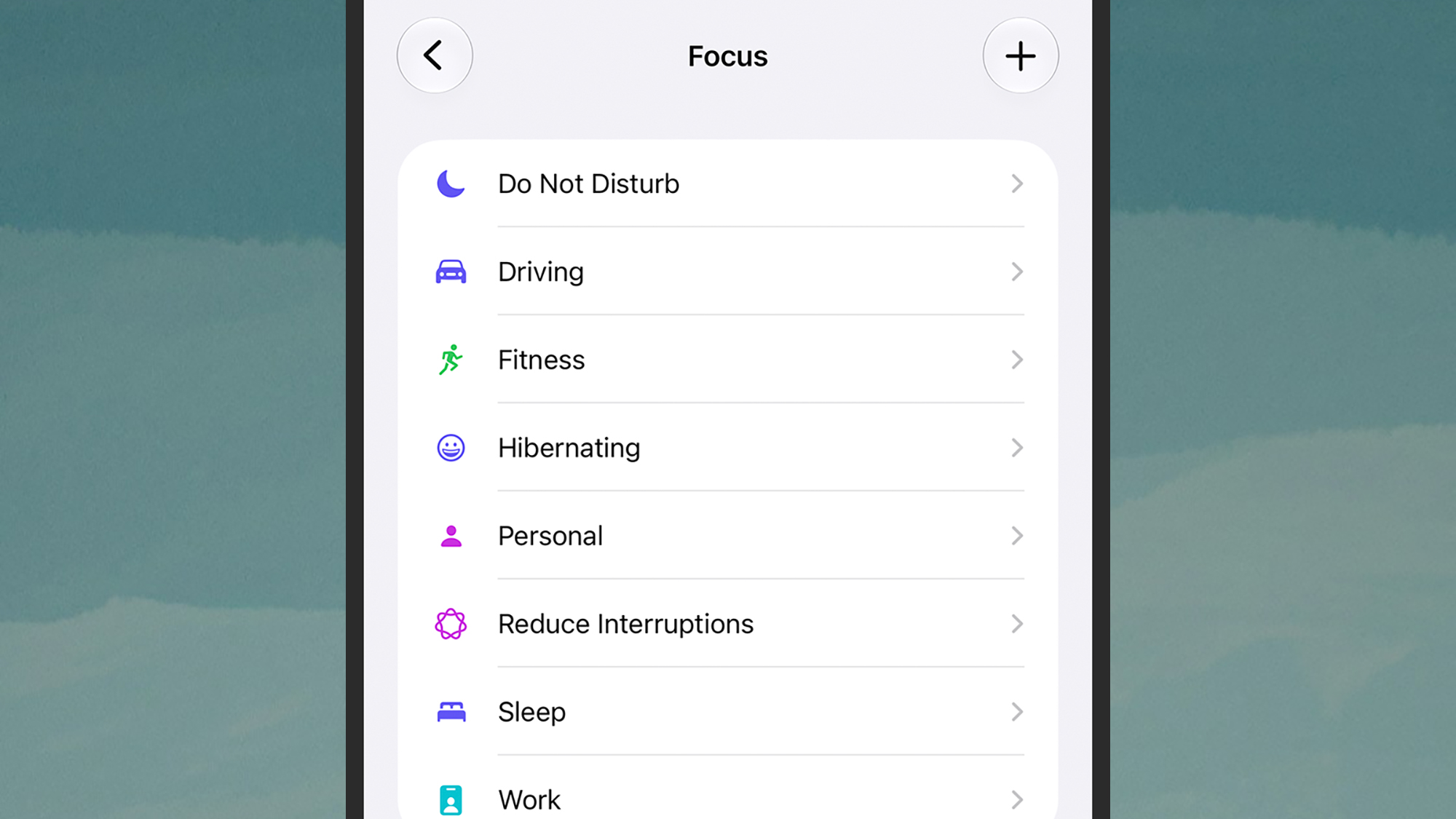
Both Android and iOS let you use so-called Focus modes to cut down on distractions and reduce the temptation to doomscroll. They work like a Do Not Disturb mode with extras, and you can configure different settings for sleeping, driving, or trying to get work done.
On Android, open Settings and then head to Modes; on iOS, it’s Settings and then Focus. The features work in a similar way on both platforms, letting you edit an existing Focus mode or start your own from scratch, with exemptions for certain apps and contacts.
7. Check your apps
Certain apps come with their own features for limiting the amount of time you spend in them, so it’s worth having a look through the apps that cause you to doomscroll the most to see what options you’ve got—even if it’s just dialing down the number of notifications.
Instagram is one example. Open up the profile tab, then tap the menu button (three horizontal lines) and pick Time management. From the next screen you can set yourself a daily limit, and enable a sleep mode (when notifications are muted) for specific times.
8. Put up your guard
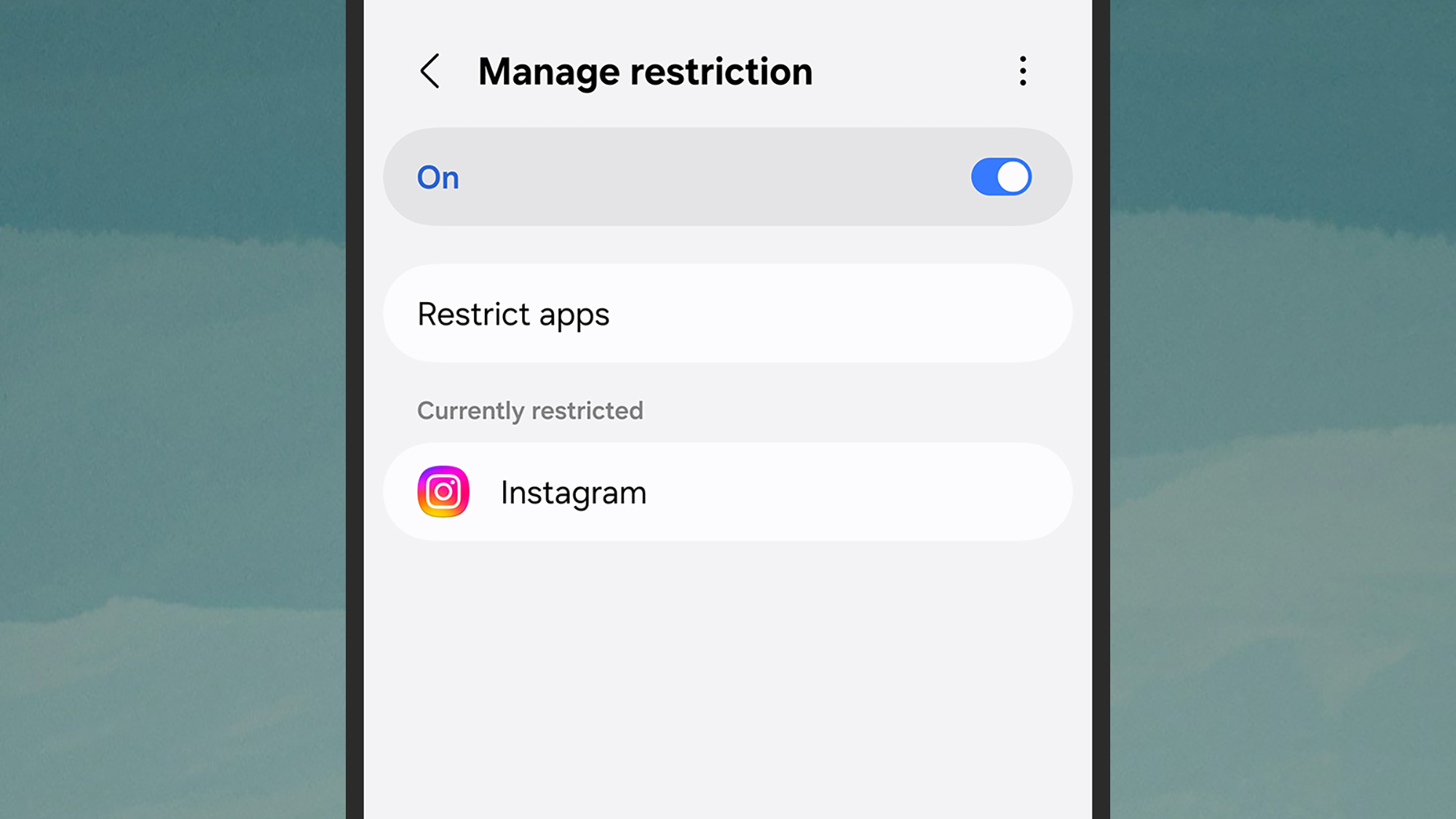
This is just for the Samsung Galaxy owners out there, and if your phone has the latest One UI 9 software installed on it, there’s a new tool available in it called AI Network Guard. It’s designed for kids, but it works well for keeping adults (i.e. you) off distracting apps too.
It’s well hidden though: From Settings, tap Connections > Wi-Fi, then the three dots in the corner. Then, tap Intelligent Wi-Fi five times to bring up the Connectivity labs entry. Here you’ll find AI Network Guard, and can choose the apps to impose usage restrictions on.
9. Quieten the notifications
This is a classic, because the fewer notifications you get, the less likely you are to pick up your phone. There are now a host of ways to tweak alerts on both Android and iOS, but essentially it’s about limiting how and when your apps can interrupt what you’re doing.
On Android or iOS, choose Notifications from Settings to see the options open to you. You can make alerts less distracting or disable them altogether, on an app-by-app basis, and access useful features like notification snoozing (Android) or scheduled summaries (iOS).

2026 Popular Science Home of the Future Awards